Douyin Laike OTA Integration Guide
This document is intended to guide technical and operational personnel to complete the integration, product release, and verification process between the ticketing system and the Douyin Life Service Platform.
Step 1: Douyin Open Platform Configuration
This step is mainly to complete the application creation and interface permission activation in the Douyin developer background.
Register on Douyin Laike and Douyin Open Platform.
Log in to the Douyin Open Platform and activate the "Life Service" application in the "Application Center".
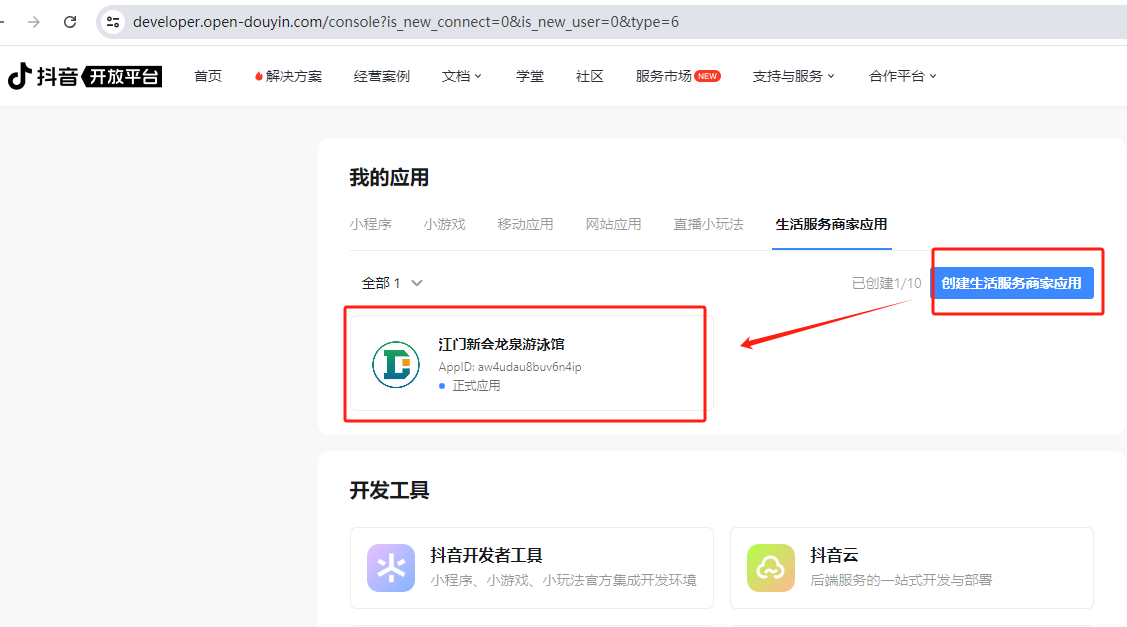
Enter the application details and click "Activate Solution".
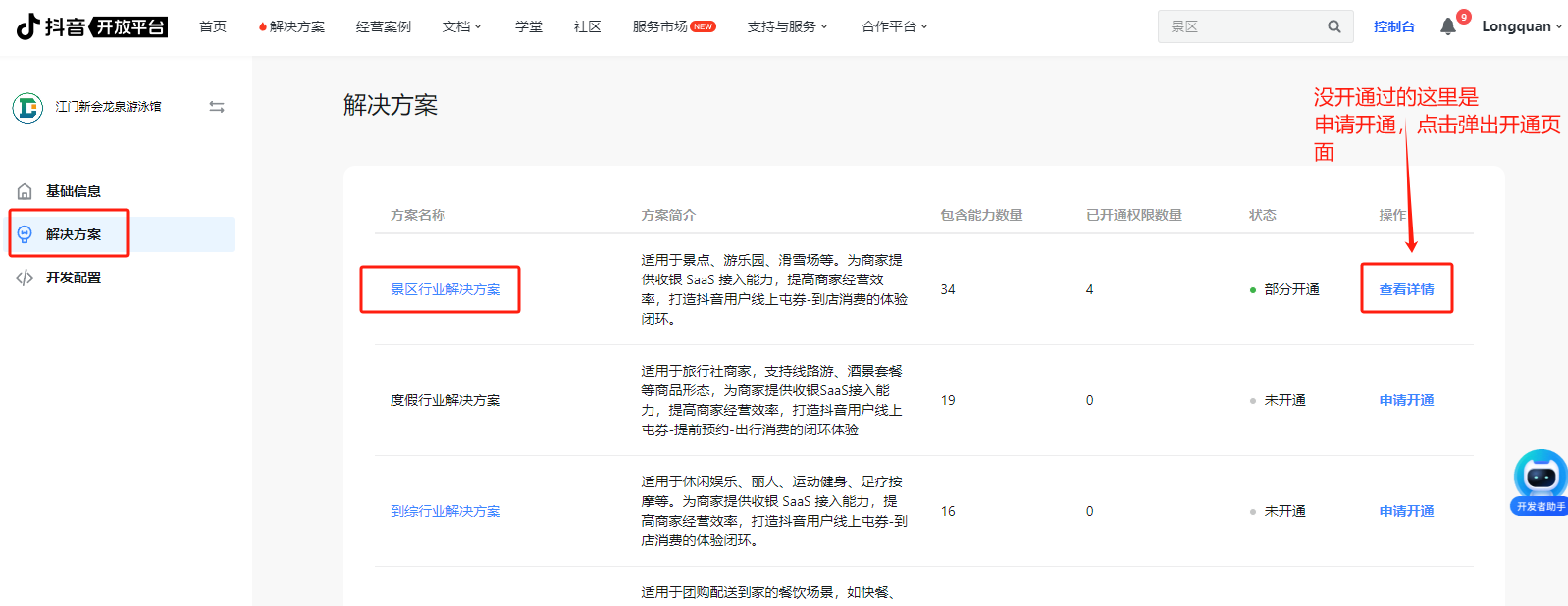
Check the required capabilities to be activated. The core is the permissions related to "Group Buying (Third-party Code)". Submit and wait for platform review.
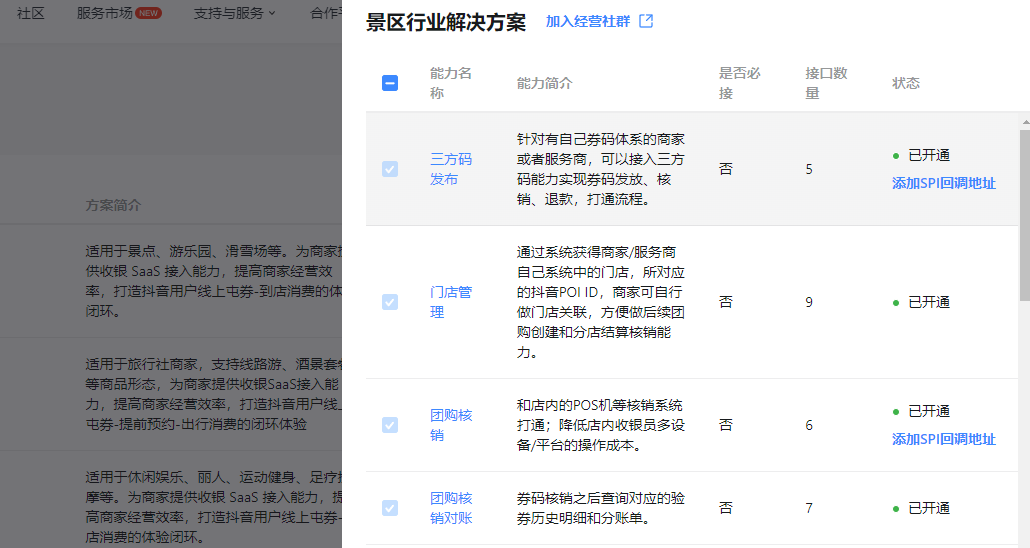
In the application background, set the "Third-party Code Callback Address". Replace
https://system_domain_namein the following address with your own ticketing system domain name and fill it into the corresponding input box.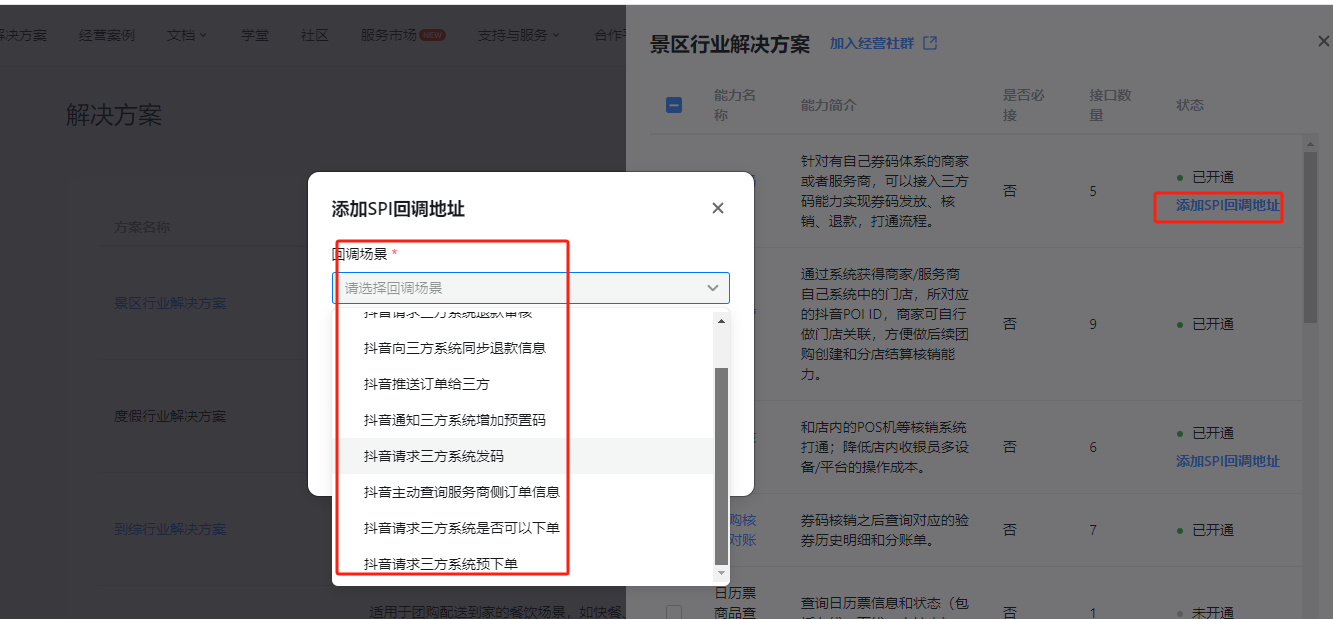
# Pre-order callback
https://system_domain_name/ticket/api/dylife/Create

# Payment success code issuance callback
https://system_domain_name/ticket/api/dylife/Pay

# Order status query callback
https://system_domain_name/ticket/api/dylife/query

# Refund review callback
https://system_domain_name/ticket/api/dylife/Refund

# Refund result notification callback
https://system_domain_name/ticket/api/dylife/RefundResult
Step 2: Ticketing and Laike Background Configuration
This step involves the ticketing system background and the Douyin Laike background, with the purpose of connecting the products and orders of both sides.
1. Configure the ticketing system
On the Douyin Laike integration configuration page in the ticketing system background, fill in the parameters provided by the open platform according to the actual situation.
About "Interface Acceptance Use Cases" This part of the configuration is to help you quickly pass the official interface online review of Douyin. You need to create a dedicated test ticket and associate it here according to the use cases provided by Douyin. One use case corresponds to one ticket and cannot be reused.
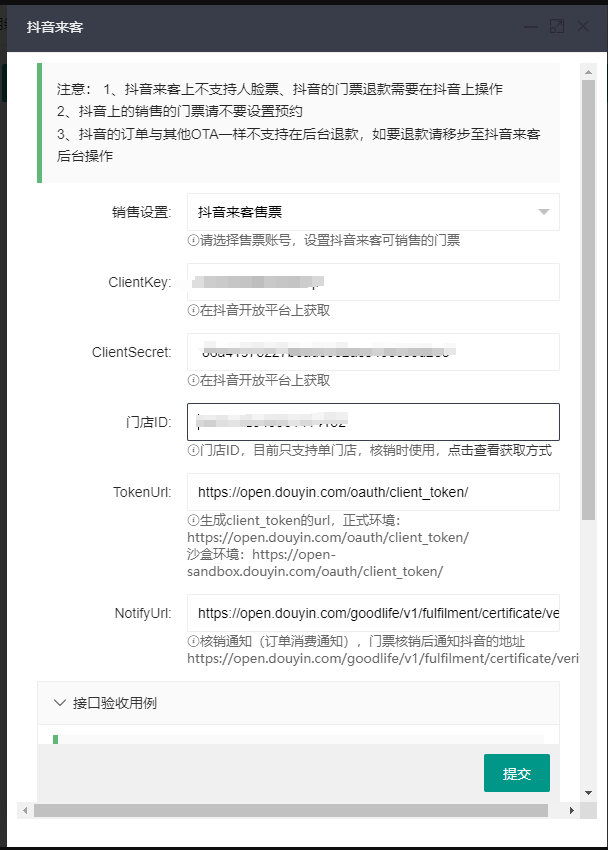
2. Douyin Laike background configuration
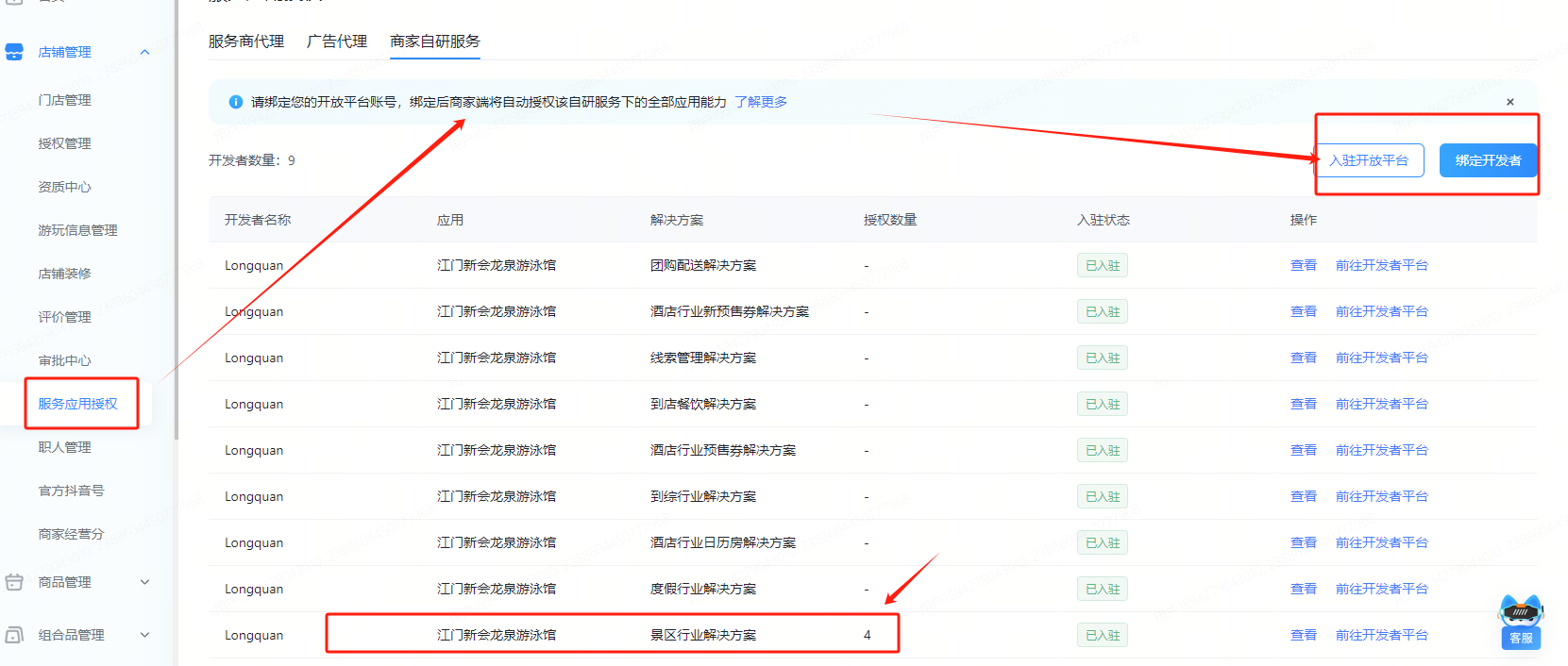
Bind Application: In the Douyin Laike background, bind the open platform application created in the first step.
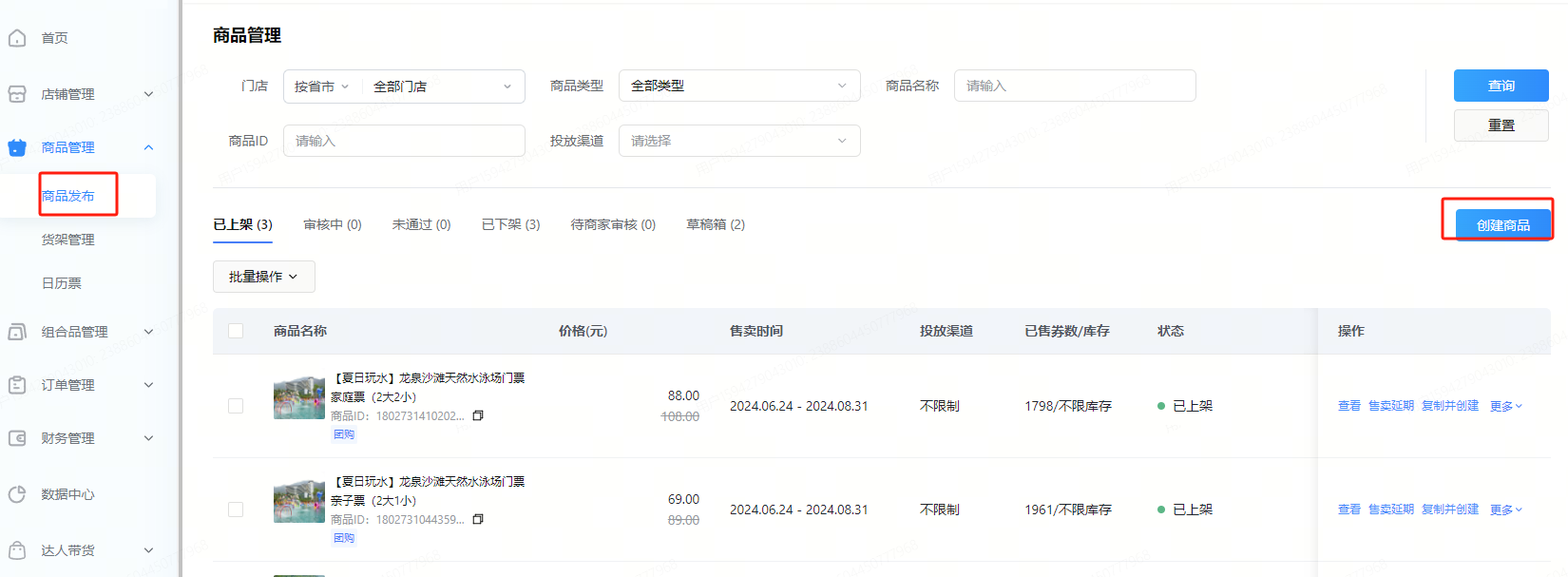
Release Product: In "Product Management", click "Release Product".
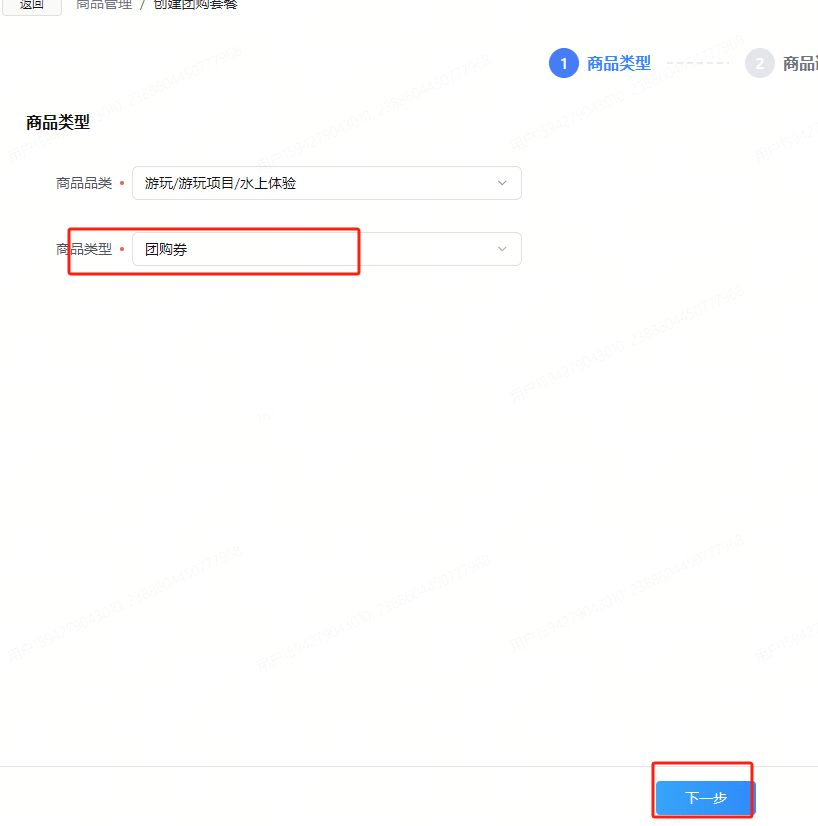
Select Type: Select the product type as "Group Buying Coupon".
Fill in Product Information: This is the most critical step. Please make sure the information is filled in correctly.
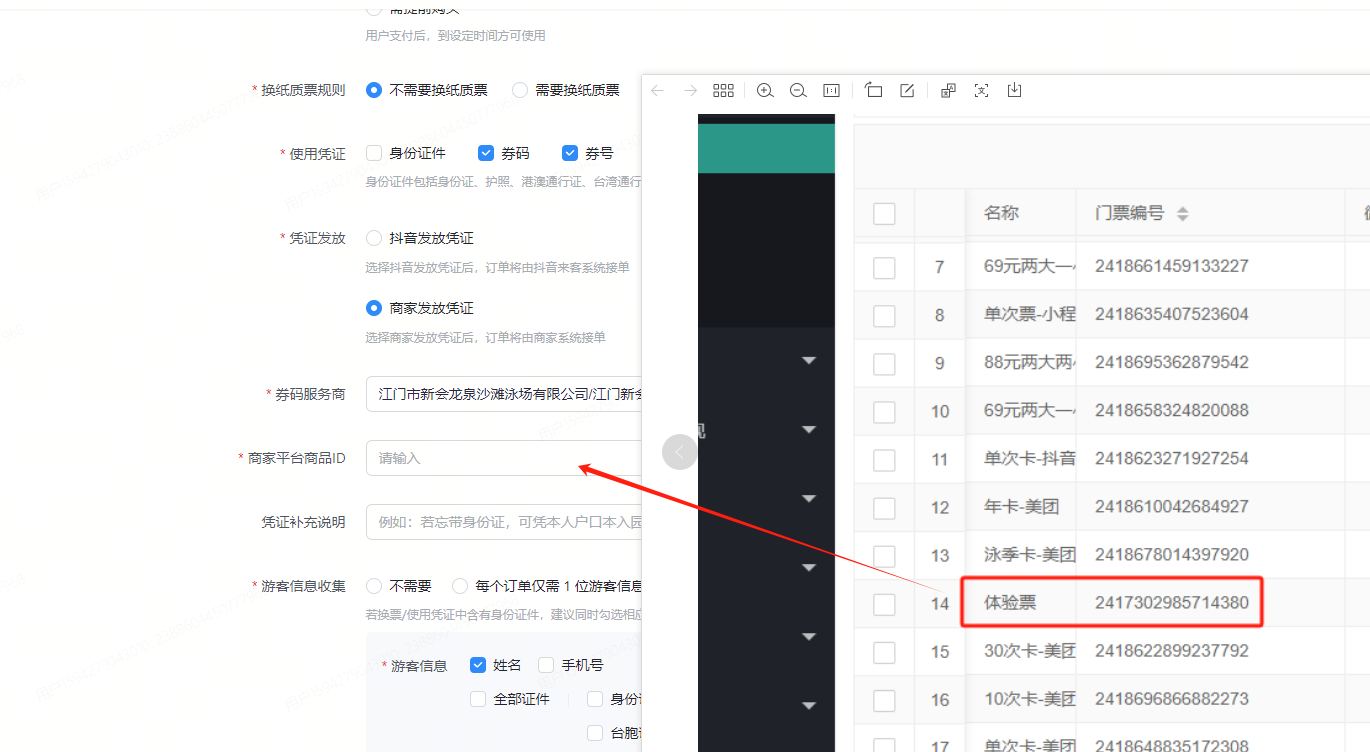
- Sales Attributes: Must be exactly the same as the attributes of the corresponding ticket in the ticketing system.
- Voucher Issuance: Select "Merchant Issues Voucher".
- Coupon Code Service Provider: Select the application you created in the first step.
- Merchant Platform Product ID: Fill in the unique code/ID of the ticket in the ticketing system.
**Note:** The ticket used for integration must first be checked for the "Douyin Laike" sales channel in the "Ticket Sales Settings" of the ticketing system.Submit for Review: After filling in all the information, submit for release and wait for platform review.
Step 3: User Purchase and Verification
User Purchase: After the product is approved and put on the shelves, users can browse and purchase the ticket in the Douyin App.
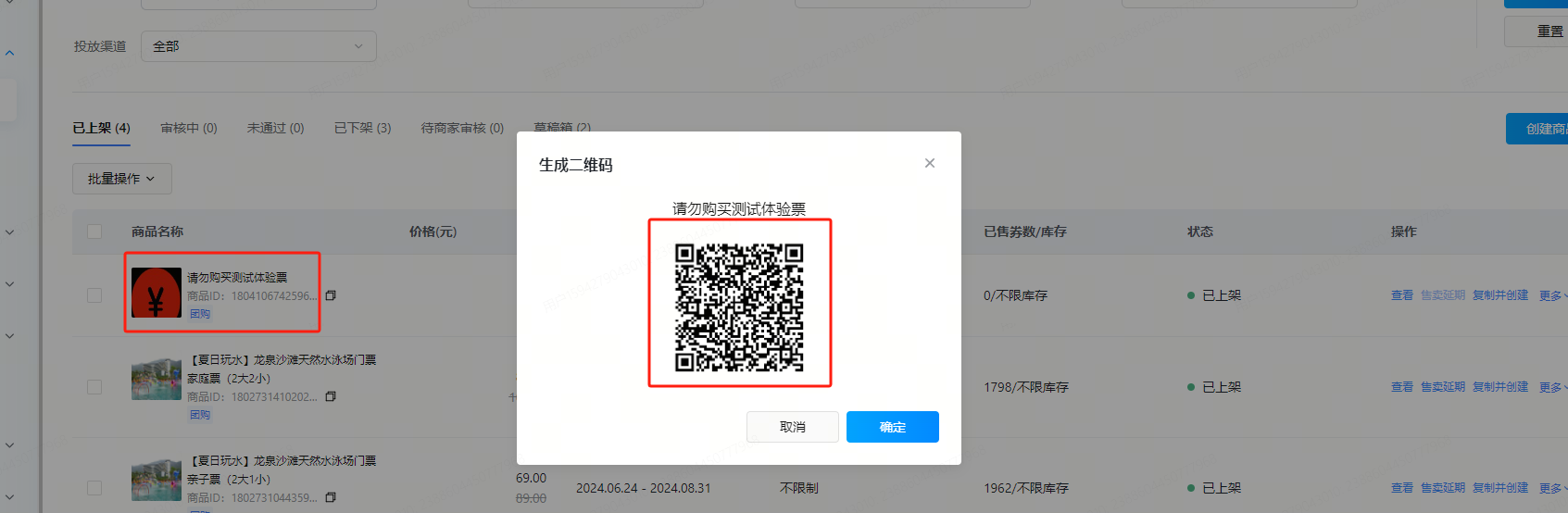
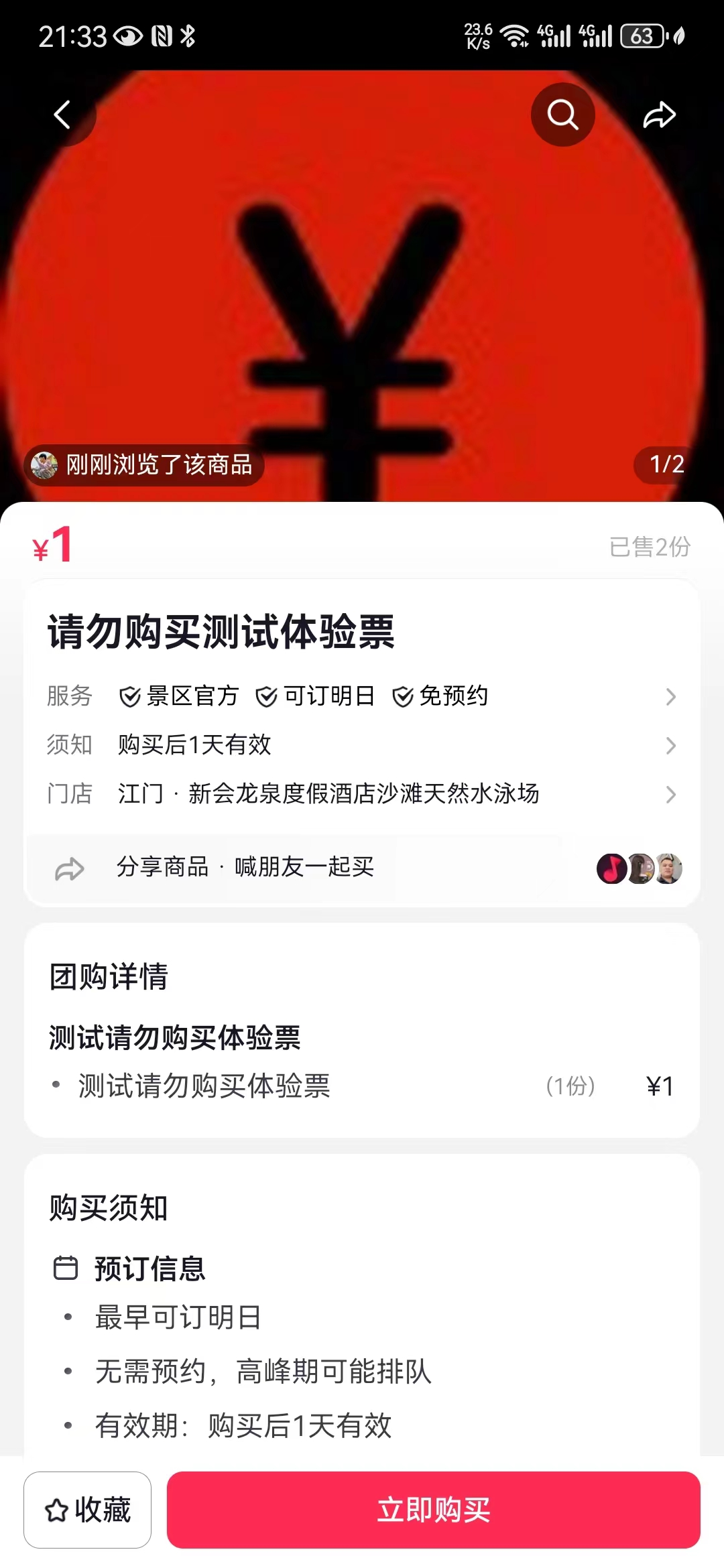
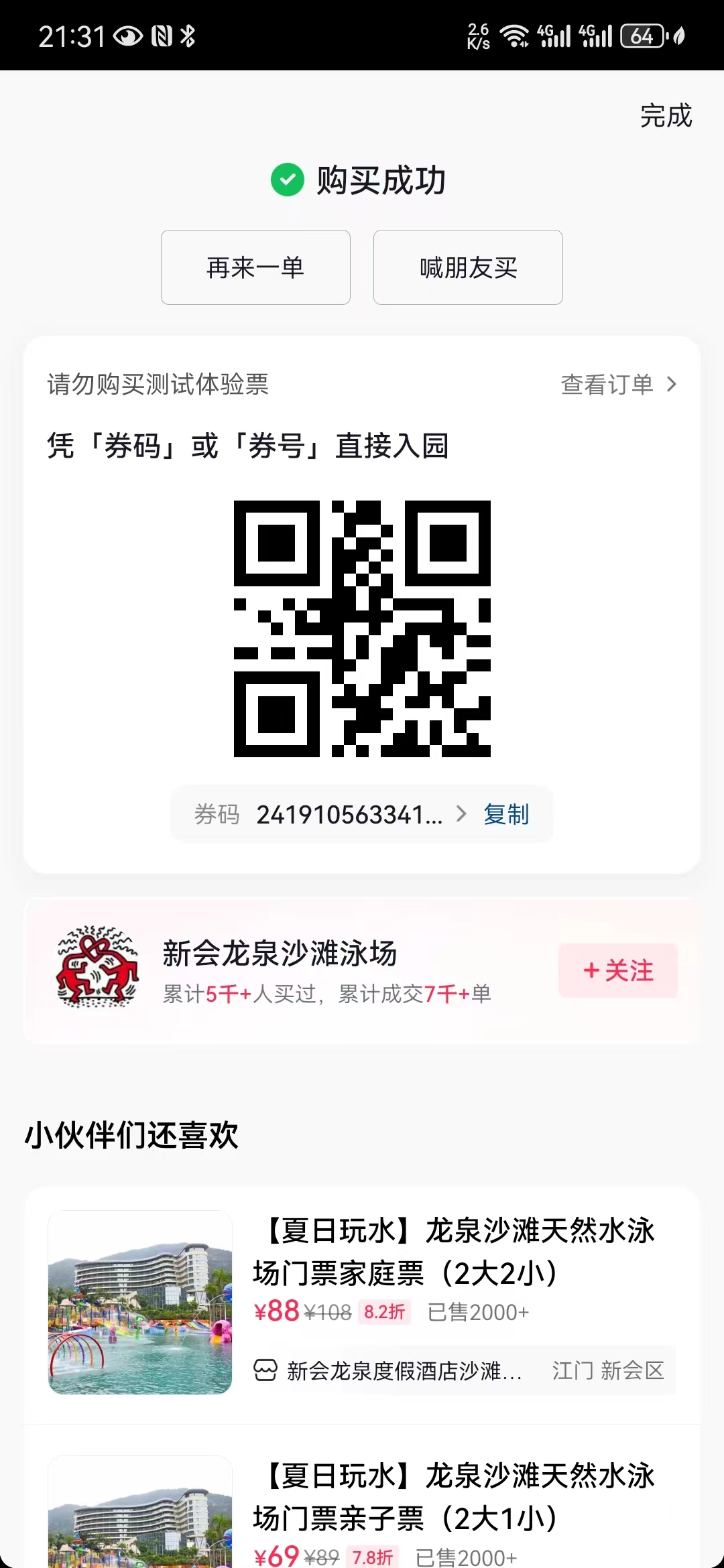
Order Synchronization: After the user pays successfully, the order will be automatically synchronized to the ticketing system.
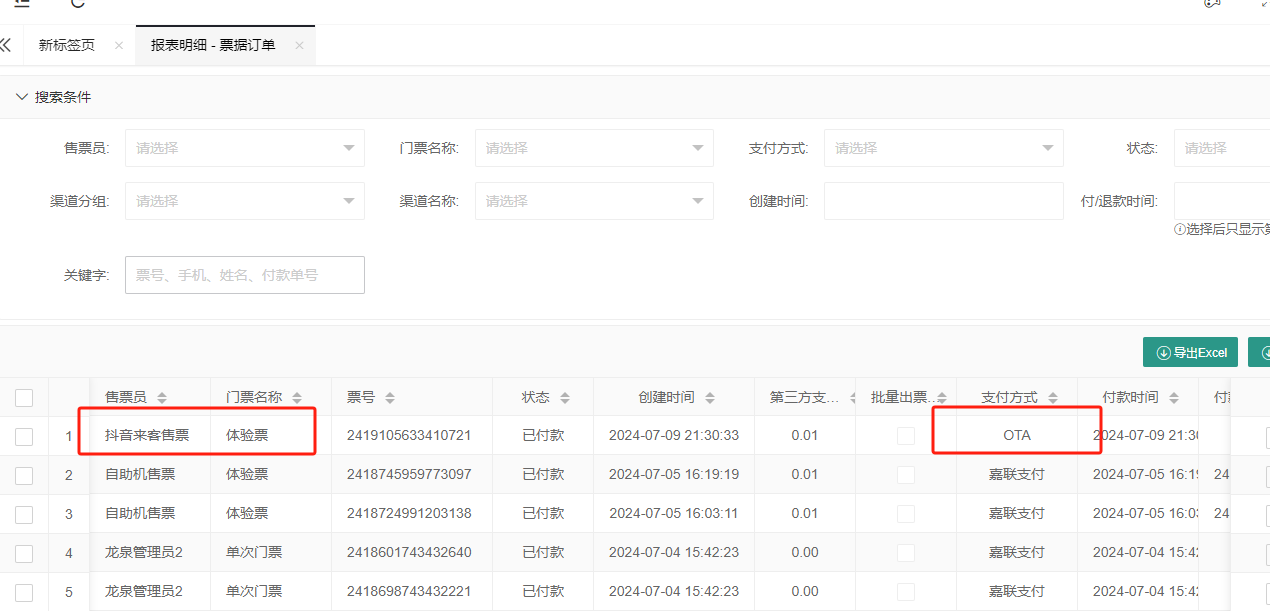
On-site Verification: When the user arrives at the scenic spot, open the order details in the Douyin App and show the voucher QR code. The scenic spot turnstile or handheld ticket checker can directly scan this QR code to complete the verification. The verification status will be automatically synchronized back to the Douyin platform.
**Verification Prerequisite:** Please ensure that you have authorized the corresponding ticket checking equipment (such as turnstiles) in the "Ticket Checking Settings" of the ticketing system to allow it to verify tickets from the Douyin channel.